


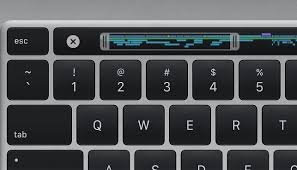
If you’ve ever had your mouse or trackpad stop working, you know the frustration. That’s when knowing how to restart Mac with keyboard becomes extremely useful. Whether your system freezes, your apps aren’t responding, or you just want a quicker way to reboot, there are several keyboard shortcuts and techniques available.
In this guide, we’ll cover everything from quick restarts to safe restarts using only the keyboard. By the end, you’ll have a reliable step-by-step approach for restarting your Mac without needing a mouse.
Why Learn How to Restart Mac with Keyboard?
Many Mac users rely on the Apple menu to restart their computer. But what happens if your mouse freezes, your trackpad isn’t responding, or you prefer faster workflows? Learning how to restart Mac with keyboard ensures you can still control your device in emergencies.
Some key reasons include:
- Frozen mouse or trackpad: Keyboard shortcuts save time when your pointer doesn’t move.
- Faster workflow: Power users often prefer keyboard shortcuts for efficiency.
- Accessibility: Those with mobility challenges may find the keyboard easier than a trackpad.
- Emergency fixes: A frozen app or unresponsive screen often requires a quick restart.
Knowing these shortcuts is like having a safety net for your Mac.
Keyboard Shortcuts for Restarting a Mac
Immediate Restart Shortcut
The most direct method is:
Control + Command (⌘) + Power button
This will instantly restart your Mac without showing confirmation dialogs. It’s fast, but remember that apps will close without saving, so use it cautiously.
If you are learning how to restart Mac with keyboard, this is the shortcut you’ll likely use the most.
Menu Navigation Restart
Not everyone likes force restarts. If your Mac is still responsive, you can navigate the Apple menu with the keyboard:
- Press Control + F2 (or Fn + Control + F2) to move focus to the menu bar.
- Use the arrow keys to highlight the Apple () menu.
- Press Enter to open it.
- Scroll down with the Down Arrow until you reach Restart.
- Press Enter to confirm.
This is the safest way to restart your Mac with the keyboard, as it allows applications to close properly.
Force Restart Method
Sometimes your Mac is completely unresponsive. In that case:
- Hold down the Power button (or Touch ID button on newer Macs) for about 10 seconds.
- This forces the Mac to shut down.
- Press the Power button again to restart.
While this method works, it’s a last resort because it doesn’t allow apps to close cleanly.
How to Restart Mac with Keyboard on Newer Models
If you’re using a MacBook Pro or MacBook Air from 2016 onward, you’ll have a Touch ID button instead of a traditional power key. To restart with the keyboard:
- Use Control + Command + Touch ID button for an immediate restart.
- Hold down Touch ID for 10 seconds for a force restart.
Modern Macs make it simple, but shortcuts remain mostly the same.
How to Restart Mac with Keyboard on Older Models
On Macs with optical drives (pre-2012), another shortcut existed:
Control + Command + Eject (⏏)
This worked similarly to the Power shortcut. However, since newer Macs no longer have eject keys, this method only applies if you’re using an older Mac model.
Difference Between Restart, Shutdown, and Sleep
When learning how to restart Mac with keyboard, it’s important to distinguish between restart, shutdown, and sleep:
- Restart: Closes all apps and reboots the system. Useful for refreshing memory or after installing updates.
- Shutdown: Turns off your Mac completely.
- Sleep: Puts your Mac in low-power mode, allowing quick wake-up.
Each function has its own shortcut, so knowing them gives you more control.
Tips Before Using Restart Shortcuts
Before hitting a restart shortcut, keep these tips in mind:
- Save your work: Some shortcuts force an immediate restart without warnings.
- Close unnecessary apps: Prevents data loss.
- Use the menu navigation method when possible: Safer for your files.
- Know your Mac model: Shortcuts may differ between older and newer Macs.
Being prepared ensures smooth restarts without frustration.
Common Problems and Solutions
- Shortcut doesn’t work: Try pressing Fn + Control + F2 if Control + F2 doesn’t activate the menu bar.
- Unresponsive Mac: Use the Force Restart method by holding the Power/Touch ID button.
- Apps won’t close: Consider using Command + Option + Esc to force quit frozen apps before restarting.
These troubleshooting steps complement your knowledge of how to restart Mac with keyboard.
FAQs on How to Restart Mac with Keyboard
1. Can I restart Mac without the power button?
Yes, by using the Apple menu with Control + F2 navigation.
2. What if my Mac is completely frozen?
Hold down the Power/Touch ID button for about 10 seconds to force shutdown, then press it again.
3. Is restarting with the keyboard safe?
Yes, but avoid the immediate restart shortcut if you haven’t saved your work.
4. Does every Mac have the same shortcuts?
Most are the same, but older Macs used Control + Command + Eject, which doesn’t apply to newer models.
5. What’s the difference between restart and shutdown shortcuts?
Restart reboots your Mac, while shutdown turns it off completely. Each has its own shortcut.
Conclusion
Knowing how to restart Mac with keyboard is more than a convenience—it’s a reliable troubleshooting tool. Whether your mouse freezes or you simply prefer speed, keyboard shortcuts give you full control. From the quick Control + Command + Power restart to the safer menu navigation method, you now have multiple ways to keep your Mac https://www.com.ui.edu.ng/ituweb/ running smoothly.
